Creating an SSH Key Pair and Logging in on a Linux Server (shell.metropolia.fi)
Generating SSH Keys
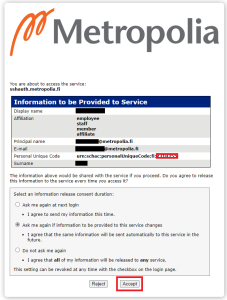
Log in with your Metropolia credentials at https://sshauth.metropolia.fi.
Internal Network or VPN
Access to https://sshauth.metropolia.fi requires Metropolia's internal network or VPN service.
Instructions for using the VPN service are available here: VPN Connection via GlobalProtect Service.- Select Accept.
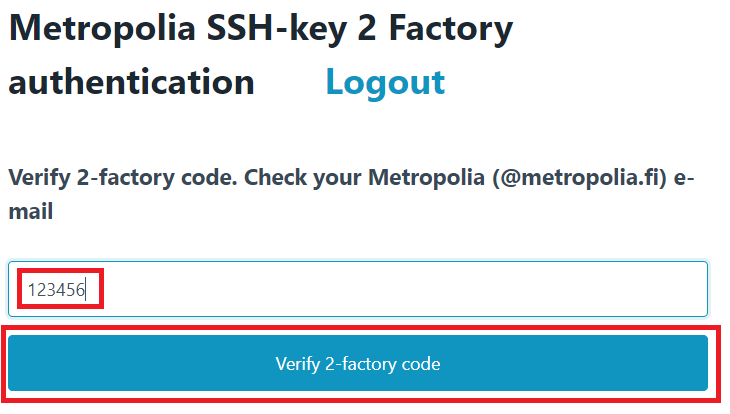
- Open the code for two-factor authentication from the message sent to your Metropolia email.
- Enter the code in the form.
- Select Verify 2-factory code.
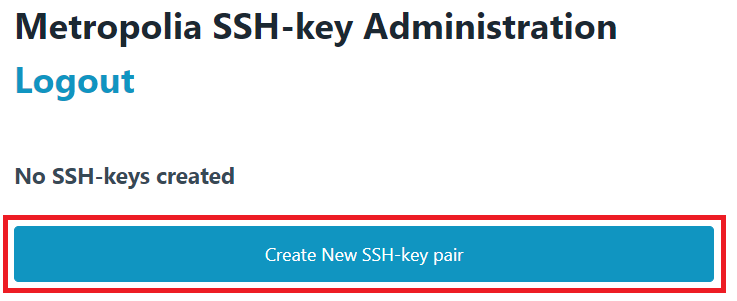
- Select Create New SSH-key pair.
- Select Download current SSH-private key.
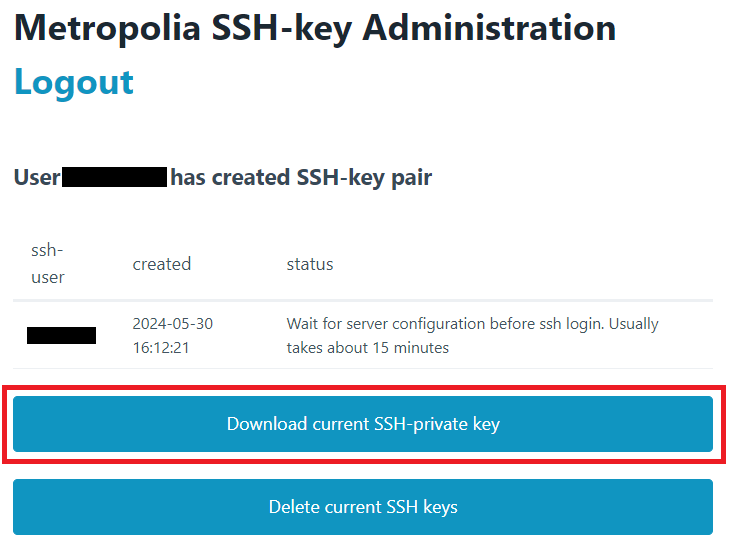
Save the key to your desired folder on your computer.
Check the status column to see if the key pair has been activated. Refresh the view by pressing Ctrl+R or clicking the browser's refresh icon. Activation takes about 15 minutes.
| Key status | Status message |
|---|---|
| Non-active | Wait for server configuration before ssh login. Usually takes about 15 minutes |
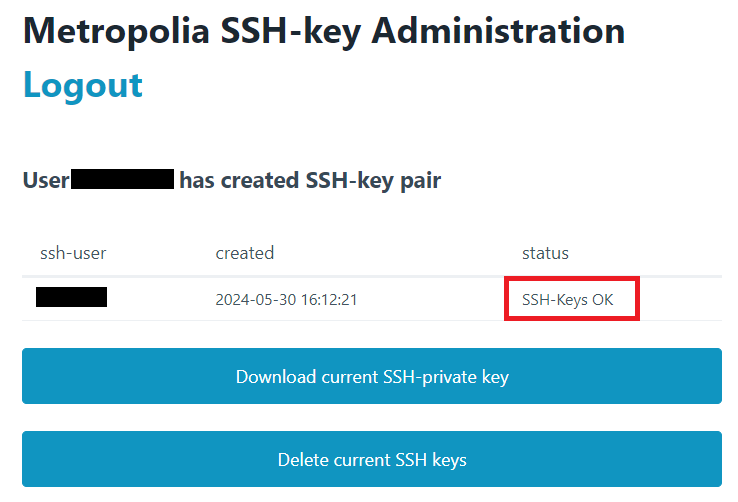
| Active | SSH-Keys OK |
24-hour Time Limit
The private SSH key is stored on the service for 24 hours. Download the key before the deadline.
How do I create a new key pair if I have deleted or lost my previous key file?
Create a new key pair according to the Generating SSH Keys instructions.
How do I completely stop using a key pair and disable logins?
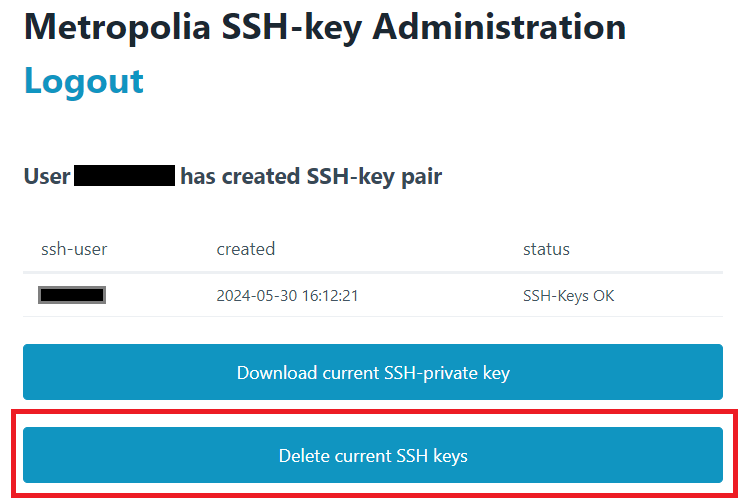
- Log in according to the Generating SSH Keys instructions at https://sshauth.metropolia.fi.
- Disable the key pair by using the Delete current ssh keys function.
SSH Login from a Workstation
Login and Key Pair Status
Login only works if the key pair status on the site https://sshauth.metropolia.fi is marked as SSH-Keys OK.
SSH Connection from Windows Command Prompt
- Open the Windows Command Prompt.
- Press
 .
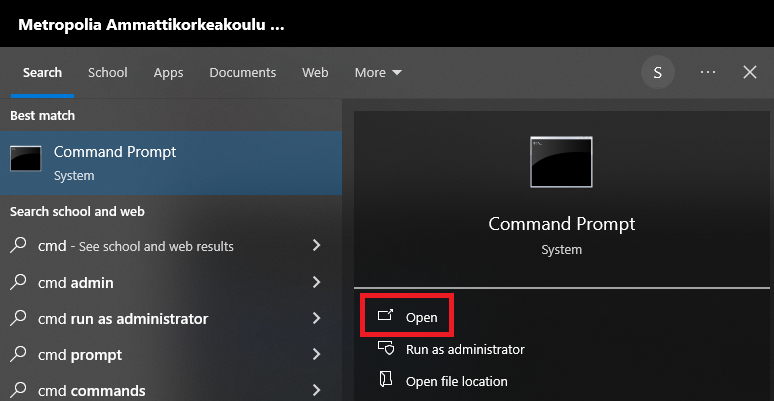
. - Type cmd in the search field.
- Open the Command Prompt application.
- Press
- Navigate to the folder where the key is stored.
- Change the file permissions to a format accepted by the SSH software by entering the commands:
icacls <ssh-key file name> /Inheritance:r
icacls <ssh-key file name> /Grant:r "%Username%":"(R)" - Log in to the server by entering the command:
ssh –i <ssh-key file name> <short Metropolia username>@shell.metropolia.fi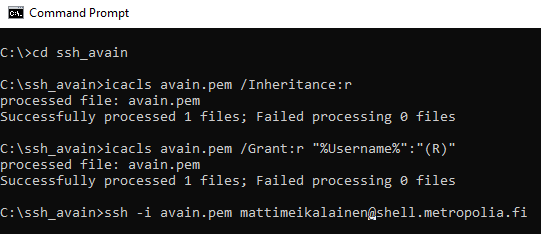
- If the SSH program gives a message:
The authenticity of host 'shell.metropolia.fi (195.148.105.150)' can't be established.
ECDSA key fingerprint is SHA256:JmKwxqzHvpLgmGW6o+PId0GmdalnHMdsG0jDlINUG3c.
Are you sure you want to continue connecting (yes/no/[fingerprint])?- Type yes.
Press Enter.
File Permissions on Network Drives
If you have stored the SSH key on a network drive, it is possible that the file permissions do not save correctly with the icacls commands, and the SSH command line software does not create a connection, giving an error message "WARNING: UNPROTECTED PRIVATE KEY FILE!". In this case, change the storage location of the key to your computer's hard drive and start following the instructions from the beginning.
SSH Connection Using PuTTY on Windows
- Open the PuTTY Key Generator program.
- Press +R.
- Type puttygen in the text field.
- Click OK.
- Press
- Select Conversions → Import key.
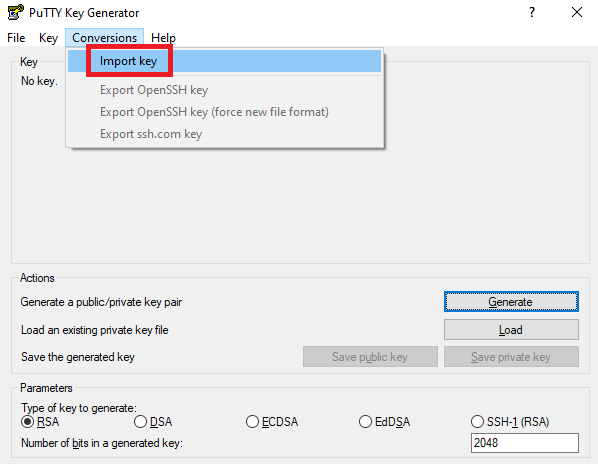
- Select the private SSH key you saved.
- Save the key in PuTTY format to your desired folder.
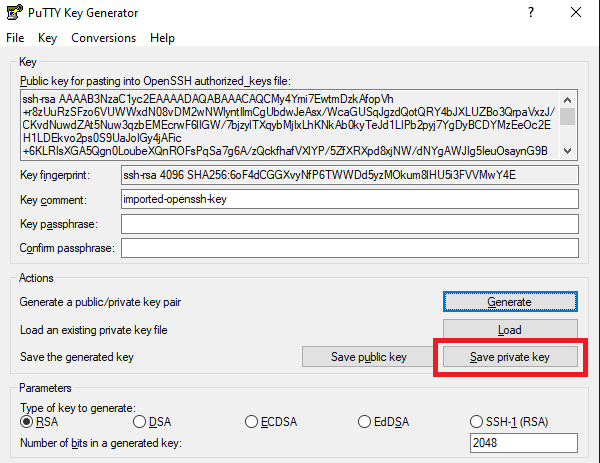
- Establish SSH Connection with PuTTY.
- Open PuTTY
- Press .
- Type putty in the search field.
- Click the PuTTY icon.
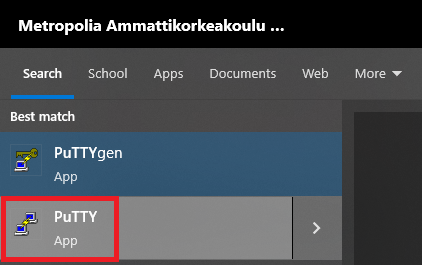
- Press
- Go to the menu Connection → SSH → Auth → Credentials.
- Set the saved PuTTY format SSH key file in the Private key file for authentication field.
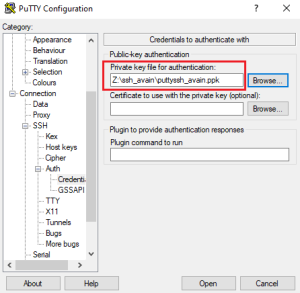
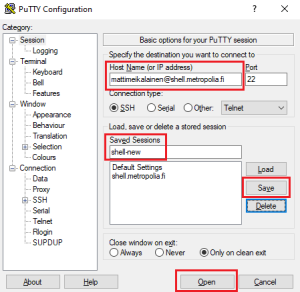
- Fill in the server details in the Session section in the format <short Metropolia username>@shell.metropolia.fi.
- Save the session by giving it a name in the Saved Sessions field and click Save.
- Log in to the server by clicking Open.
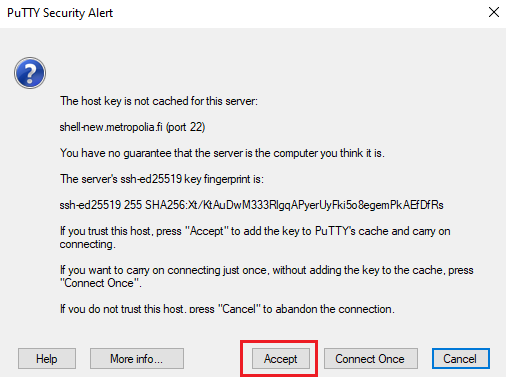
- Click Accept in the security warning window.
- If the connection opens, but no text is printed in the PuTTY window:
- Close PuTTY.
- Restart PuTTY.
- Double-click the saved session.
- Open PuTTY
SSH Connection from Linux Command Line
- Navigate to the folder where the key is stored.
- Change the file permissions to a format accepted by the SSH software by entering the command:
chmod 600 <ssh-key file name> - Kirjaudu palvelimelle syöttämällä komento:
ssh –i <ssh-key file name> <short Metropolia username>@shell.metropolia.fi
- If the SSH program gives a message:
The authenticity of host 'shell.metropolia.fi (195.148.105.150)' can't be established.
ECDSA key fingerprint is SHA256:JmKwxqzHvpLgmGW6o+PId0GmdalnHMdsG0jDlINUG3c.
Are you sure you want to continue connecting (yes/no/[fingerprint])?- Type yes.
Press Enter.
Did You Encounter a Problem?
- Restart your computer and the device where the issue is occurring. Try the function again.
- If the function you are attempting is happening in a web browser, try the function again in an incognito or private window and in a different browser.
- Try searching for a solution on the site of the IT Services by using the following search methods:
- navigation menu of the site (on the left)
- search machine of the wiki (right upper corner)
- a general search engine, for instance Google Search
- alphabetical index
- FAQ
If the problem is not resolved, please contact the helpdesk according to best practices. Always include a full screen screenshot of the issue in your service request.
| Contact method | Contact information |
|---|---|
| Form | |
| Phone service | +358 9 7424 6777 (weekdays from 8 am to 4 pm) |
SSH-avainparin luonti ja kirjautuminen Linux-palvelimelle (shell.metropolia.fi)