The ecloud virtual servers for teaching (ecloud.metropolia.fi)
Ordering a virtual server
VPN
This service only works from the Metropolia network or through Metropolia VPN connection.
A user with Metropolia credentials and email can order a virtual server from https://ecloud.metropolia.fi.
Note that only you can access the virtual machine management console or manage settings through the ecloud portal.
- Go to https://ecloud.metropolia.fi.
When asked, accept the first screen to pk.amk.root by pressing Next.

- Log in using the short Metropolia username without the @metropolia.fi suffix.
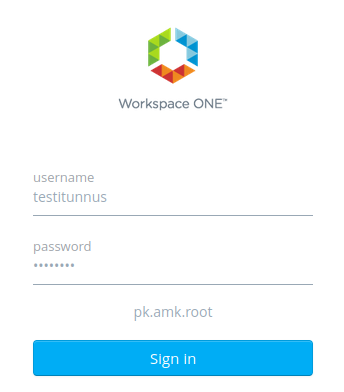
- Select the desired operating system type by pressing Request below the desired system type.

Define the desired virtual machine resource type.

Feature Description Deployment Name Name of the virtual machine VM Template Operating system base installation type VM Size Number of processors and memory (see below)
Lease Time Order duration in days (IT does not increase usage times at students' request.) VM Size CPU Muisti Lisätiedot Small 1 CPU(1 sockets x 1 cores) 4 GB Recommended for basic Linux courses Medium 2 CPU (2 sockets x 1 cores) 8 GB Recommended for Windows virtual servers
and Linux advanced courses
Large 4 CPU (4 sockets x 1 cores) 16 GB Only for special courses
Do not select a Large machine unless you ABSOLUTELY need four processors (or the teacher instructs you to select this one).- You'll be notified via email once your virtual server is ready, and you can also check its status from the control panel. Preparing a virtual machine takes about 10-15 minutes. After placing your order, you will receive an email containing general instructions and all the information about your virtual machine, including network settings and the pre-installed operating system username and password.
- Log in to the machine from the management console as shown by the arrow in the picture by clicking Connect to Remote Console.

Deleting virtual machine
The virtual machine is automatically deleted when the usage time expires. You will receive a message to your email when there are 2 weeks left of the virtual machine's usage time and when the virtual machine is finally deleted. You can also delete the virtual machine yourself by selecting the Delete function from the ecloud interface in the Resources section.
Select Delete as shown by the arrow in the picture.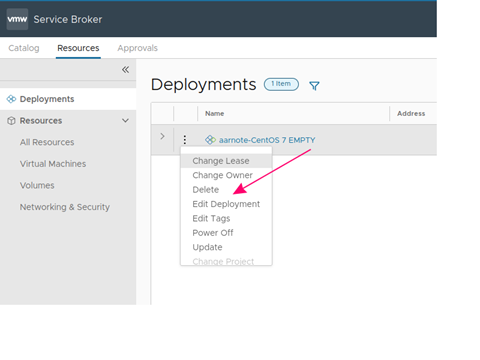
Virtual machine extension
You can apply for a two-week extension for the virtual machine once. You will receive a confirmation of the successful/failed extension request to your email.
Apply for an extension from the interface in the Resources section.
Select Change Lease as shown by the arrow in the picture.

Additional information on virtual machine resources
| Server | Description |
|---|---|
| RockyLinux 9 | Ready basic installation including IP address. |
| Rocky Linux 9 Empty | Install Rocky Linux 9 yourself from a network drive. |
| Rocky Linux 9 LAMP | Ready, Apache PHP, MariaDB server. |
| Ubuntu 22.04 LTS | Ready basic installation including IP address. |
| Ubuntu 24.04 LTS | Ready basic installation including IP address. |
| Windows 2022 | Ready basic installation with windows 2022 operating system. |
| Windows 2016 | Ready basic installation with windows 2016 operating system. |
| Windows 2019 | Ready basic installation with windows 2019 operating system. |
Picture. Rocky Linux Empty network settings. Use installer defaults (dhcp)
The disk space of the virtual machine is determined by the operating system:
| Operating system | Disk space |
|---|---|
| Win2019 | 120 GB |
| Win2016 | 90 GB |
| Ubuntu 22.04 LTS | 40 GB |
| Ubuntu 24.04 LTS | 40 GB |
| RockyLinux 9 | 40 GB |
| Rocky Linux 9 LAMP | 40 GB |
| windows 2022 | 120 GB |
| Rocky Linux 9 Empty | 30 GB |
Each user has the following personal resource pool that cannot be exceeded.
Maximum 10 processors
Maximum 6 virtual machines
Maximum 40GB of memory
Maximum 300 GB of disk space
The usage time can be extended once by two weeks. IT Services does not increase usage times at the request of students.
Did you encounter a problem?
Ecloud is a service that gives you access to a server platform. The server has only an operating system installed, which you are responsible for maintaining, configuring and keeping functional. You are also responsible for installing all services and software on your ordered virtual server and their functionality. IT Services does not back up virtual servers, so you MUST take care of backup yourself.
Ecloud User Support
Metropolia does not provide support for the functionality of Ecloud virtual servers, as you are their administrator.
For other questions, please contact us as follows:
- Restart your computer and the device where the issue is occurring. Try the function again.
- If the function you are attempting is happening in a web browser, try the function again in an incognito or private window and in a different browser.
- Try searching for a solution on the site of the IT Services by using the following search methods:
- navigation menu of the site (on the left)
- search machine of the wiki (right upper corner)
- a general search engine, for instance Google Search
- alphabetical index
- FAQ
If the problem is not resolved, please contact the helpdesk according to best practices. Always include a full screen screenshot of the issue in your service request.
| Contact method | Contact information |
|---|---|
| Ask AI-Bot Mikko 24/7 | |
| Form | |
| Phone service | +358 9 7424 6777 (weekdays from 8 am to 4 pm) |
Opetuskäytön ecloud-virtuaalipalvelimet (ecloud.metropolia.fi)