Display Screens for Open Learning Environments
In Metropolia’s open learning environments, mobile 65–75" presentation displays on rolling stands are available to support studying and events. Open learning environments are usually sofa groups in campus corridors or other open spaces furnished more casually.
There are also other displays in the corridors, including the Information Display System screens; do not use or move these devices without permission from IT Services or the display administrator.
Using a presentation display
- Connect the HDMI cable attached to the presentation display to your laptop, and the display will turn on automatically and your computer’s image will appear on the screen.
- When you are finished, disconnect the HDMI cable from your computer and hang it back on the hook intended for it. The presentation display will turn off or go into sleep mode automatically after a short while.
Do not make changes to the display settings or connections, as that will only cause inconvenience for the next user. If you notice a fault in the display’s operation, please report it to the Helpdesk.
Please be considerate of other users of the space, i.e. do not play audio too loudly or show any illegal or inappropriate material on the display.
Borrowing a presentation display for event use
Metropolia IT Services does not have an Event Display service, but for short events, for example for a few days, the presentation displays on rolling stands in open learning environments may be freely used, provided that after use the display is returned to its proper place with the connections restored correctly; the cables are labeled for this purpose. “Fixed” presentation equipment inside learning spaces, such as displays in classrooms or meeting rooms, must not be taken, because dismantling a fixed installation usually causes a malfunction in the equipment. Nor may displays that are clearly already in use elsewhere, such as campus information displays, be used. Content is presented on the displays in the same way as in other spaces, from your own BYOD laptop via an HDMI cable. Moving displays to events and presenting material are not included in IT Services’ basic service, so the user is responsible for the presentation themselves and for ensuring that the display is returned in working order to its original location for others to use.
- Make sure that the place where you need the display has electricity.
- Find an open learning environment on campus that has a presentation display on a rolling stand. Such a display can be identified by the following criteria, all of which must be met:
- The display is on a rolling stand in an open space AND
- The display’s cables are not permanently attached to the wall or to other devices AND
- Moving the display only requires disconnecting 2 cables from wall sockets (if there are more cables or they are connected to other devices, the display must not be disconnected!) AND
- The display is not currently in some other use (e.g. information display).
- Disconnect the display’s cables (2 pcs.) from the wall sockets and hang them on the hook on the display so that none of the cables can get under the wheels, then move the display to the location you want.
- Use the display as a presentation display is used.
- When you are finished, return the display to its place and reconnect its cables (2 pcs.) to the wall sockets in exactly the same way as they were. If you notice that the display was originally in the wrong place, please return it to the correct place. Each display has a label indicating which space it belongs to. If necessary, ask the Helpdesk or the campus lobby services for assistance.
Do not make changes to the display settings or connections, as that will only cause inconvenience for the next user. If you notice a fault in the display’s operation, please report it to the Helpdesk.
Please be considerate of other users of the space, i.e. do not play audio too loudly or show any illegal or inappropriate material on the display.
Presentation display in an open learning environment.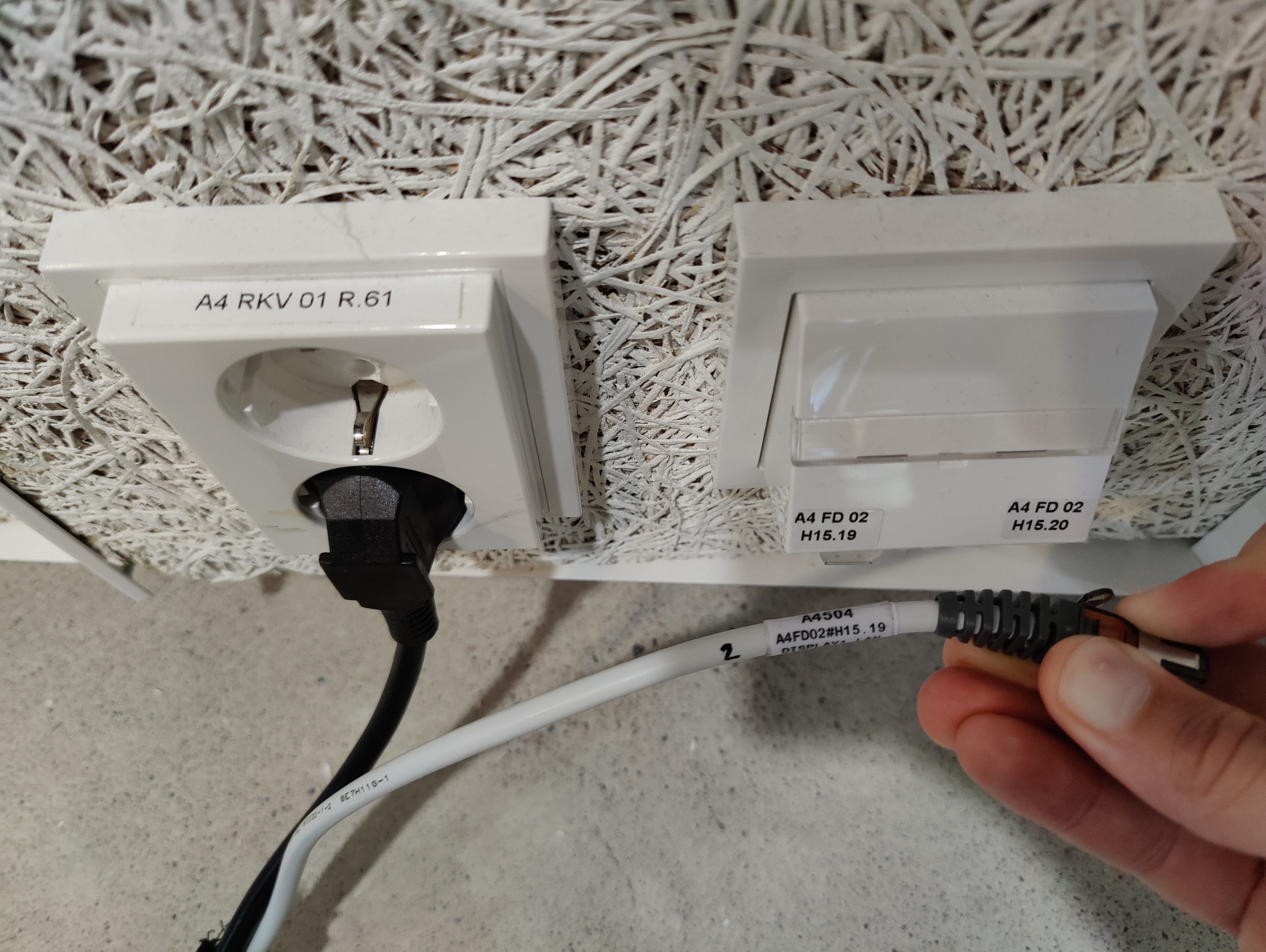
Presentation display cables. Connect the cables to the wall sockets indicated by the labels in the same way as they were.
Avoimien oppimisympäristöjen esitysnäytöt