LanSchool v.7.7
LanSchool classroom management software is a software program designed to help teachers teach more effectively in a computer-based classroom. It works on Metropolia campuses computer classrooms Teachers can reduce student distractions by blanking screens, limiting applications and limiting web browsing on student computers. This helps direct student attention from their computer to the teacher and keeps students on task.
Student-client is installed on all classroom computers and the teacher monitors or limits their activity through the Teacher-console. The Teacher-console is installed on the Teacher' (the desktop computer located at the front of the classroom, not a laptop).
More information and instructional videos can be found from Lanschool tutorials.
LanSchool is permanently installed on the desktop computers in Metropolia’s campus computer classrooms. It is not available for laptop computers.
Ethics and student privacy
It is advisable to inform the students in advance that you will be monitoring them via the Lanschool program.
Student’s screen is not allowed to be shared among other students without permission.
Keyboard monitoring mode is not installed on student clients, so no keystrokes are recorded.
Lanschool Teacher startup
Be aware that if you log into a teacher’s computer while another teacher account is already logged in and using the console, it most probably will not work. In this case, you will need to restart the computer. If this solution does not help, contact Helpdesk. If Lanschool is just installed in the computer, it will not function properly, until next restart.
When you start the program, it asks for the password (See Fig.1). You can get the password from the helpdesk.
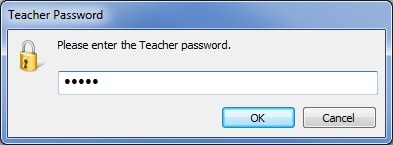
Fig.1
With the program running, a small white-green circular icon appears on the notification area. If you move the mouse arrow above of it (See Fig.2), you will be able to read the software version, the channel and its IP-address.
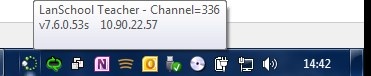
Fig.2
Right click the icon to expand the console (explained next) or left click to access the shortcut menu (See Fig.3).
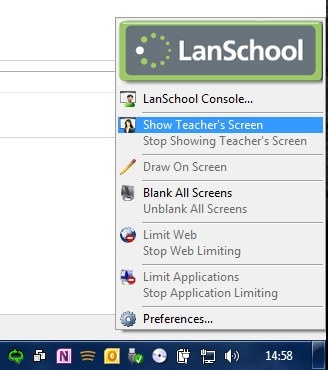
Fig.3
Lanschool Console
When the console opens, due to its large toolbar icons not all shortcuts fit in it. Click the the arrow on the right of the toolbar to view the rest (See Fig.4).
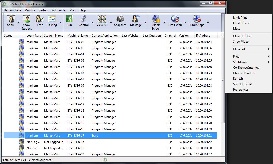
Fig.4 - Click to enlarge
The details view shows columns of information about students. By sorting on the column teachers can quickly see the computer, who's logged in, their current application, last visited websites, last question, channel number and version of the software.
Be aware that the console might load the student clients with a small delay. Also, there are times that not all computers accept the orders. Reselect those computers and reapply the wanted action.
Select one or more student computers to apply an action. Right-clicking produces the action list for the selected computers.
- Show – Share teachers screen with the chosen or all computers.
- Show Student – Share a student’s screen with others
- Vote
- Testing – Have a test or an exam
- Run – Run a command or a program
- Control – Take remote control of student computers
- View All – View everyone’s desktop
- Snapshot – Take a screen shot
- Message – Send an instant message to a student
- Blank screen – Show nothing but a blank screen on student computers
- Limit Web
- Limit Programs – Limit programs that students are allowed to run
- Limit Print – On local, shared or network printers
- Limit Drives – Such as USB and CD/DVD drives (Network drives are allowed)
- Mute - Turns off the sound on the selected student computers.
- Clear Desktop – Closes all open programs.
- Show video
- Class List – View the computer list to perform actions.
- Files – Share and transfer files to and from computers.
- Shutdown – Switch off/on computers.
- Co-Browse Internet – Browse the internet together.
- Choose Random – Choose a random computer to perform an action.
- Refresh – Refresh your view.
- Save Class List
Closing LanSchool Teacher
Switch off the program from the console Administer – Exit Teacher console